This is the English reading version of the Dutch news item BreakoutCNC 0.1: gratis open-source besturing voor RNR-borden (Mach3-alternatief).
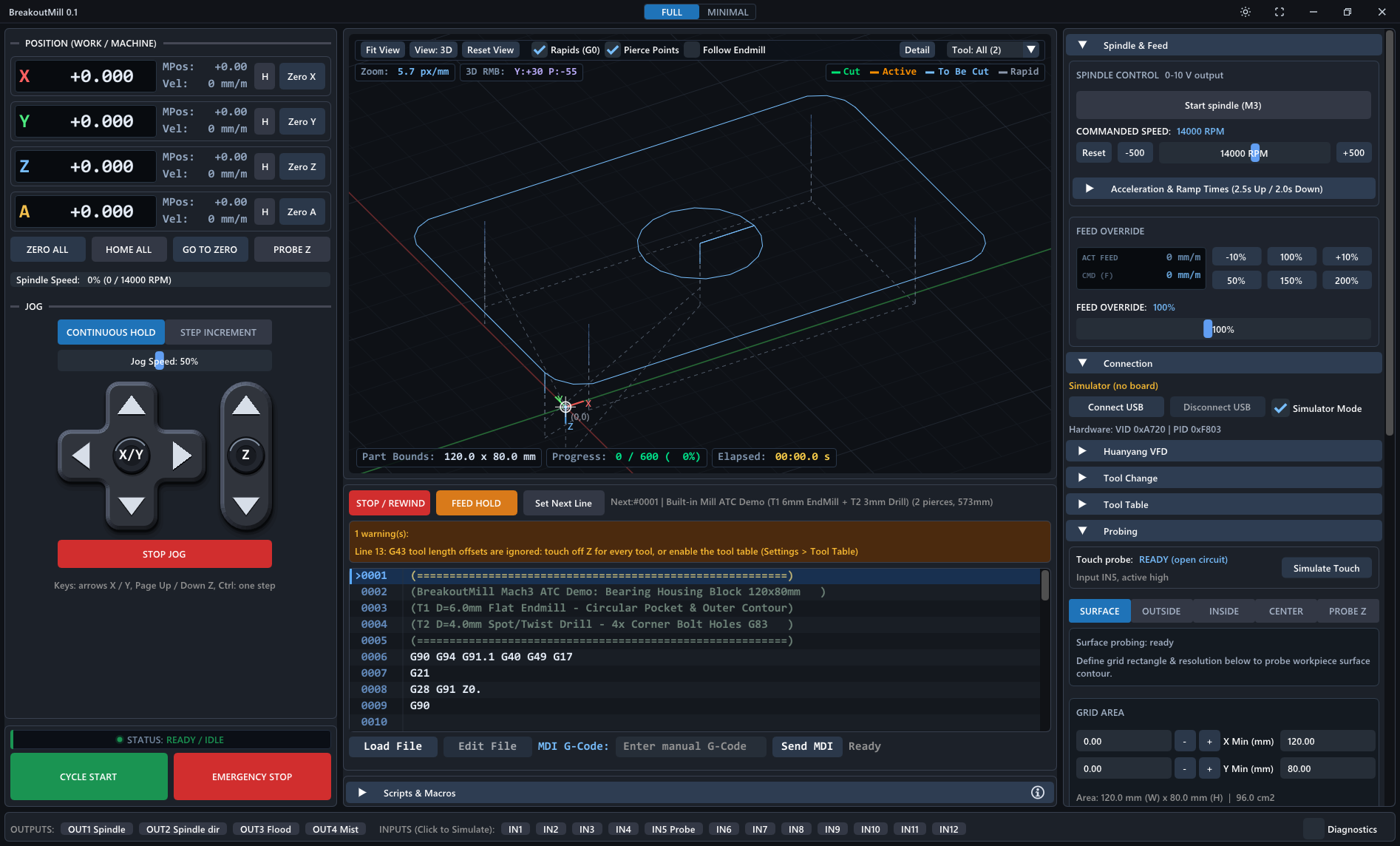
Developer rolanddd-hu has released BreakoutCNC 0.1: a free, open-source control program for hobby CNC machines running on the RNR Eco Motion 2.0 USB board. That is the red and blue card you see sold everywhere as a “Mach3 USB controller”.
The project is two separate programs: BreakoutMill for a 4-axis mill or router (X, Y, Z and A, with the A axis optionally slaved to X or Y), and BreakoutCut for plasma and laser cutters, with torch height control. Both run on Windows, Linux and macOS. A built-in simulator lets you try everything without a machine attached.
What it does
The release notes read as a long list of the features you expect from CNC control software, and that is exactly the point. Among other things it has:
- Reading G-code with look-ahead, pausing and resuming, adjusting the feed rate and the spindle speed, and entering G-code by hand.
- Work coordinates, a tool table with length offsets, and setting the zero point.
- Homing, soft limits, emergency stop and limit switches, and slaving the A axis to X or Y.
- Probing: the Z zero point, edges, corners, holes, bosses and slots, plus a surface height map that warps the toolpath to what is actually there.
- Spindle control through a Huanyang variable frequency drive, with speed monitoring.
- For plasma: torch height control with arc detection. For laser: power that follows the speed, plus framing at low power.
- Choosing what each output (OUT1 to OUT4) does, and naming unused inputs and outputs for macros.
- Importing an existing Mach3 profile, so you do not have to retype your machine settings.
- A 2D and 3D view of the toolpath, a camera view with the toolpath over it, and your own scripts for the tool change and for macro buttons.
My verdict
Honestly: this is clearly a copy of the original Mach3 environment. The layout, the buttons, the way positions and the toolpath are shown: it is all recognisably taken over.
But that comes with my caveat. There is simply not that much you can change about those CNC buttons and the way they work. They are standard patterns that have worked for years and that every CNC user relies on blind. A control program that presents them recognisably is doing something sensible.
Whether it actually works well, I do not know yet: I have not tested it myself, and this 0.1 release also feels a little early for that. The feature list and the way it is put together (the PC plans the motion, the board executes it, with a separate layer so other boards can be supported later) sound promising either way. If the basis is reliable, this is a handy and free replacement for Mach3.
Who is this interesting for?
- Hobbyists with an RNR Eco Motion 2.0 board who want to get away from Mach3: that runs on Windows only, is closed, and has had no updates for years.
- Makers who want to control their CNC from Linux or macOS.
- Anyone who prefers open source: the full code is freely available, including notes on how it is built.
- Anyone who wants to build a coupling for another board or their own macros.
What you can do now
- Download the release for your system (Windows, Linux or macOS) from the version 0.1 release page.
- Read the user guide that comes with the project: installation, the simulator, setting up the machine, moving over from Mach3, plasma and laser, and troubleshooting.
- Play with the simulator. The included example programs show the whole workflow without anything being able to go wrong.
- Work through the hardware checklist before you connect a real machine.
- Report your findings to the project itself: it is version 0.1 and the developer is looking for feedback.
Safety first
Note: a CNC machine, plasma torch or laser can cause serious injury or worse. This software comes with no warranty at all.
- Always have a physical emergency stop that actually cuts the power to the motors and the spindle, torch or laser. The emergency stop in the software is only a second layer.
- Test a new program in the simulator first, then in the air (without material), and only then in material.
Sources and links
- More background and the code: BreakoutCNC
- The release: version 0.1
Keep an eye on this site for updates and tests. I will keep following BreakoutCNC and publish my findings here once I have tested it myself.